The TTLock | TTHotel
The TTLock app enables remote management of SMART-LOCK electronic locks. The lock and the app communicate over Bluetooth BLE or via a WiFi/WLAN gateway.
Features of the TTLock app
The TTLock app gives users complete control over their electronic locks. The TTLOCK app is free of charge.
Locking & unlocking
Remotely lock or unlock your electronic lock straight from your smartphone.
Access management
Create, edit and revoke access for different people — perfect for rentals or facility management.
PIN codes
Generate one-time or time-limited access codes for guests.
Activity monitoring
Track who used the lock and when directly in the app.
Smart home integration
The app can work with selected home automation systems.
The TTHotel app
TTHotel is a platform for hotel guests that streamlines booking management and access to hotel services, improving the overall stay experience.
Room booking
Easy management of hotel room bookings.
Reservation management
Full control over all reservations in one place.
Service information
Access to all information about hotel services.
Customer support
Quick contact with hotel staff through the app.
TTHotel is used in hotels, short-term rentals and any facility where access management is critical.
Download TTHotelInstructions for the TTLock app
The complete TTLock app user guide in English. Learn how to manage SMART-LOCK electronic locks.
1. Introduction
TTLock is an app for managing smart locks. It supports many types of electronic locks including door locks, padlocks, safe locks, bike locks and more.
The app and the lock communicate via Bluetooth to:
- Lock and unlock the device
- Update the lock firmware
- Read the event history
- Manage codes, cards and fingerprints
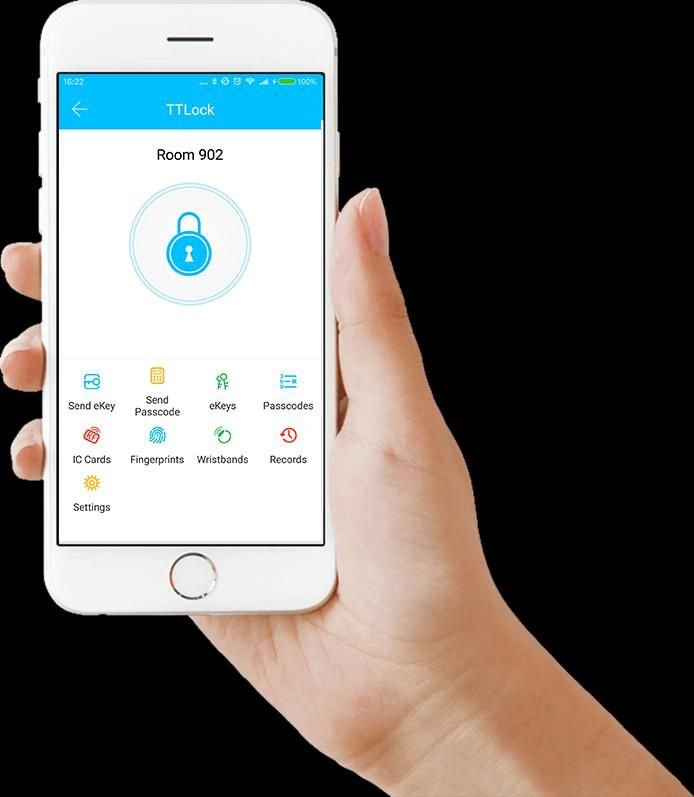
Supported languages: The app is available in many languages including Polish, English, German, Spanish, French, Italian, Russian, Portuguese, Japanese and more.
2. Installing the app
The TTLock app can be downloaded from the official app stores:
iOS (iPhone/iPad)
Download from the App Store
Android
Download from Google Play
3. Registration & login
3.1 Creating an account
TTLock users can register with a phone number or email address. The app supports over 200 countries and regions worldwide.
- Open the TTLock app
- Tap “Sign up”
- Enter your phone number or email address
- Receive an SMS or email verification code
- Enter the code and set a password (6-20 characters)
3.2 Security questions
After registration you can set security questions. They help verify your identity when logging in from a new device. You can skip this step but we recommend completing it for improved security.
3.3 Logging in
Log in with your phone number or email. If you forget your password, you can reset it via an SMS or email verification code.
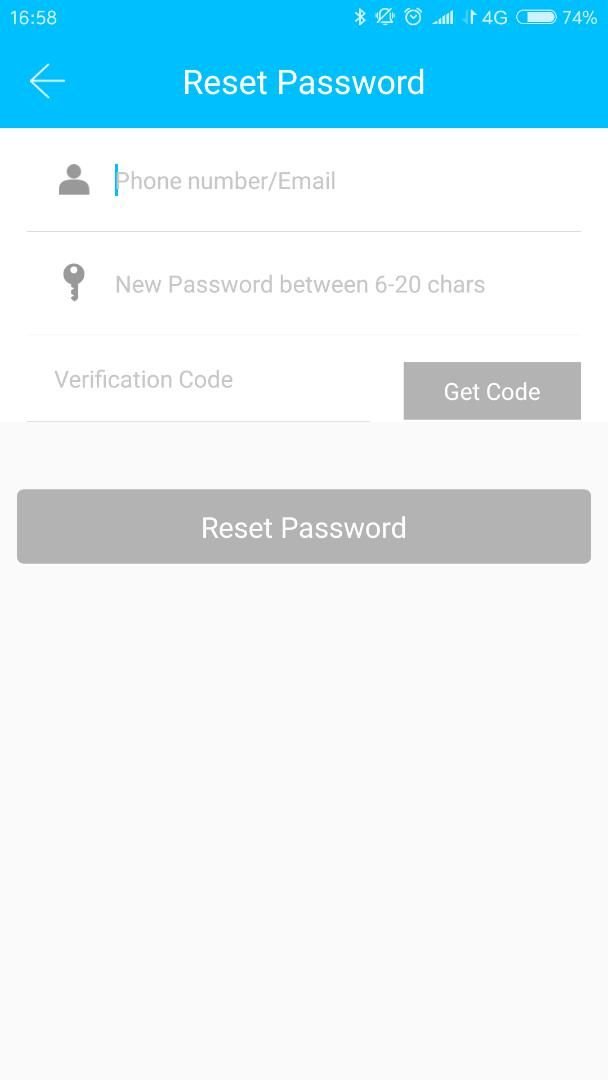
Note: Logging in on a new device requires identity verification via SMS/email or by answering your security questions.
4. Lock management
4.1 Supported lock types
The app supports many types of locks:
- • Door locks
- • Electronic padlocks
- • Safe locks
- • Electronic cylinders
- • Parking locks
- • Bike locks
4.2 Adding a lock
To use a lock, first add it to the app:
- Stand near the lock (Bluetooth range)
- Select the lock type in the app
- Touch the lock keypad to enter pairing mode
- The lock appears in the available devices list
- Tap the lock to add it
- Once added, data is uploaded to the server
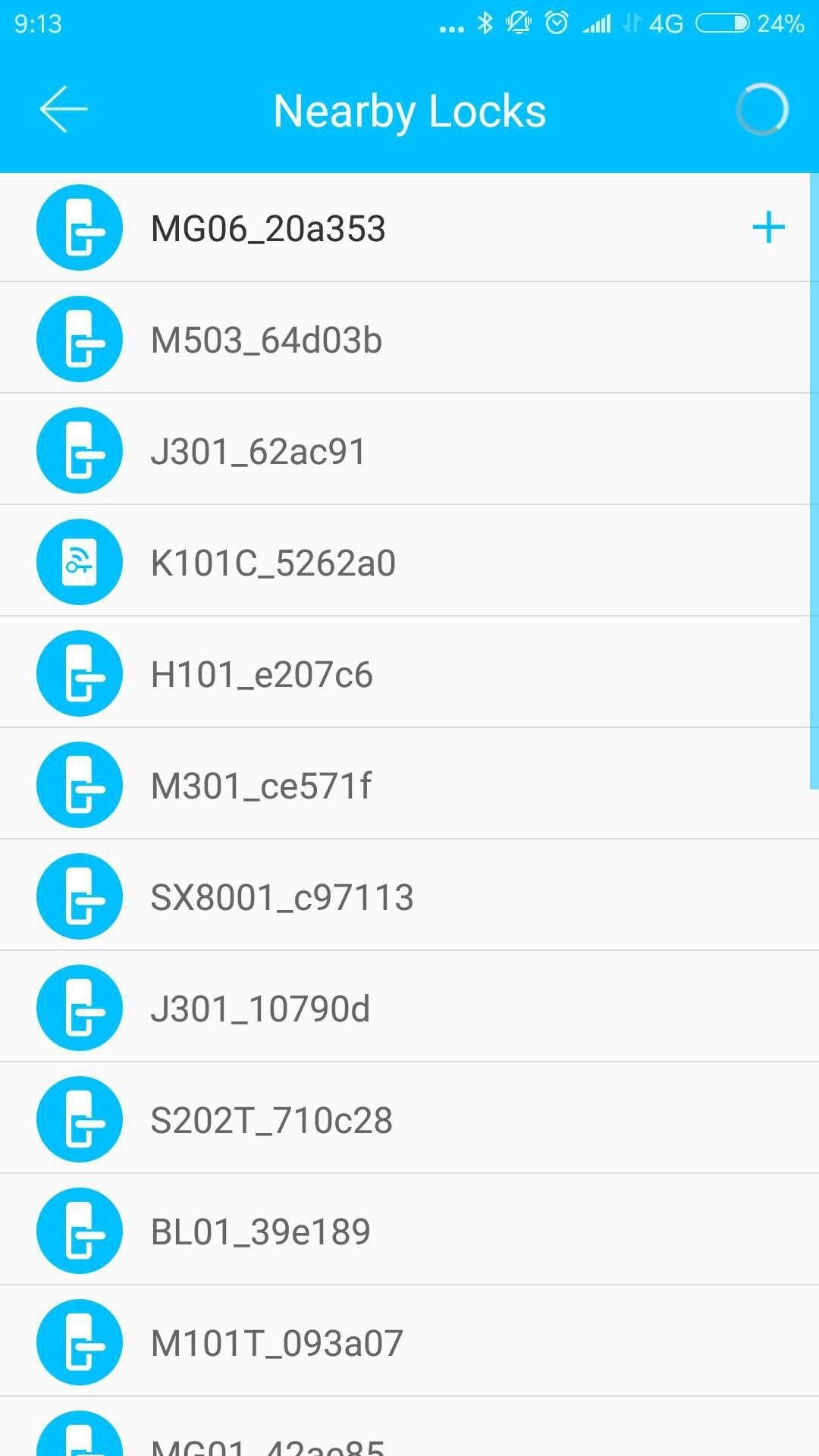
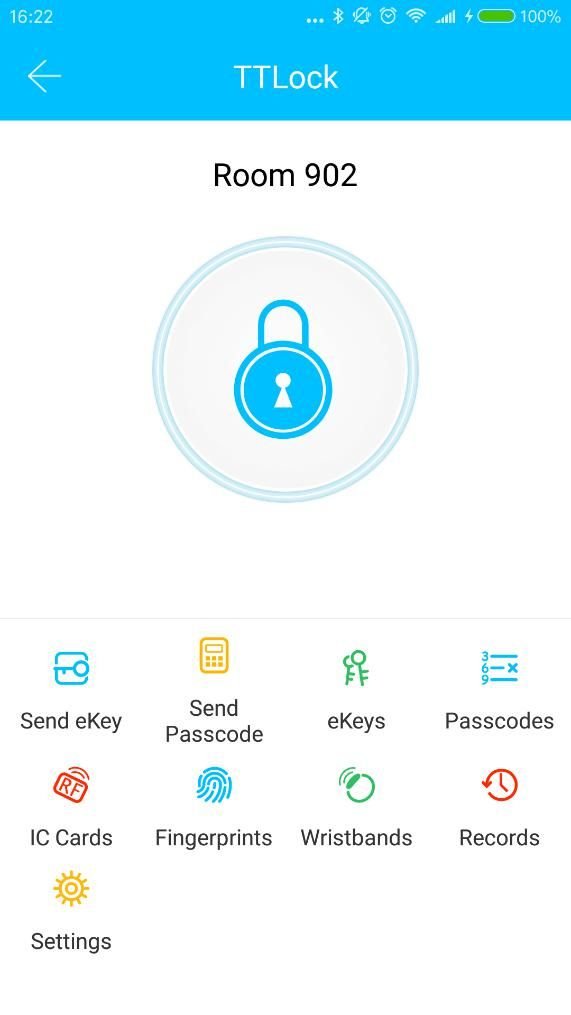
Important: The person who adds the lock becomes its administrator. Only the administrator can remove the lock from the app. Removal requires a Bluetooth connection near the lock.
4.3 Firmware updates
You can update the lock firmware via the app. Updates require a Bluetooth connection near the lock. After an update all keys, codes, cards and fingerprints remain active.
4.4 Diagnostics & time calibration
Diagnostics help analyse system issues. Time calibration synchronises the lock clock with your device. If you have a WiFi gateway, calibration happens automatically. Otherwise, a Bluetooth connection is required.
5. Electronic keys (eKey)
Electronic keys (eKey) let you share access to your lock with other people via the TTLock app.
Types of electronic keys:
Timed key
Valid for a specific period (e.g. 10:00–18:00 for 3 days).
Permanent key
Can be used without time restrictions.
One-time key
Automatically removed after a single use.
Cyclic key
Valid during recurring time slots (e.g. daily 8:00–17:00).
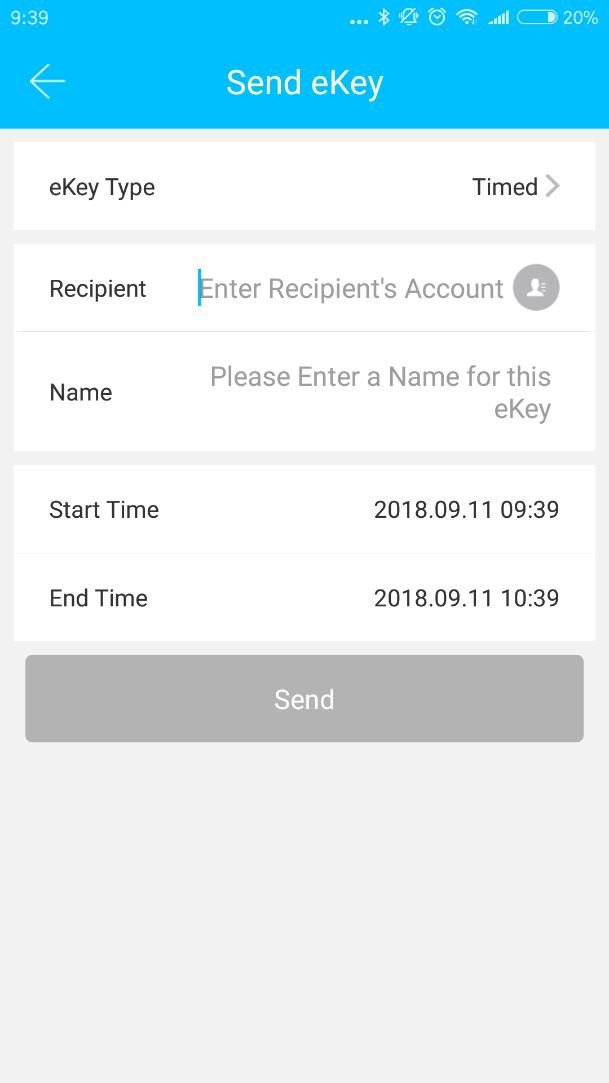
Sending an electronic key:
- Select the lock on the main screen
- Tap “Send eKey”
- Choose the key type
- Enter the recipient's account (phone or email)
- Set the validity period (for timed keys)
- Tap “Send”
Expiry warnings
The system uses colour warnings: yellow means the key is about to expire, red means the key has expired.
6. PIN code management
PIN codes let you open the lock by entering a code on the lock's keypad. After entering the code press # to open the door.
PIN code types:
Permanent code
Valid indefinitely. Must be used within 24h of creation.
Timed code
Valid for a specific period (from 1 hour up to 3 years).
One-time code
Can be used only once. Valid for 6 hours.
Erase code
Deletes all codes from the lock. Use with caution!
Cyclic / custom code
Reusable during recurring hours or a custom code (4-9 digits).
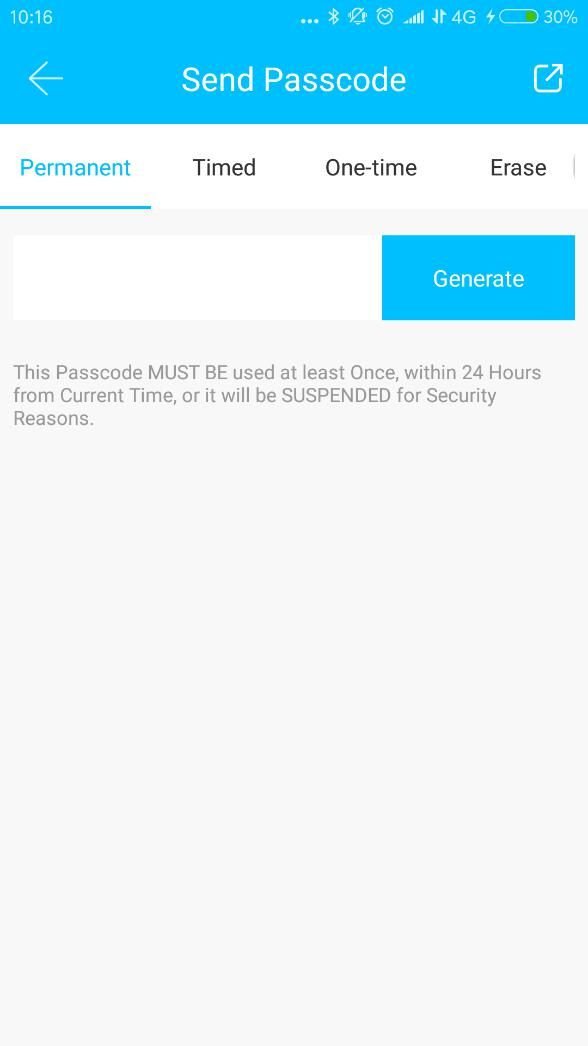
Sharing codes
Codes can be shared via SMS, email, WhatsApp, Messenger and other messaging apps.
Changing the code on the lock:
To change the code: enter the current code → *10# → old code → # → new code → # → repeat new code → #
7. Cards & fingerprints
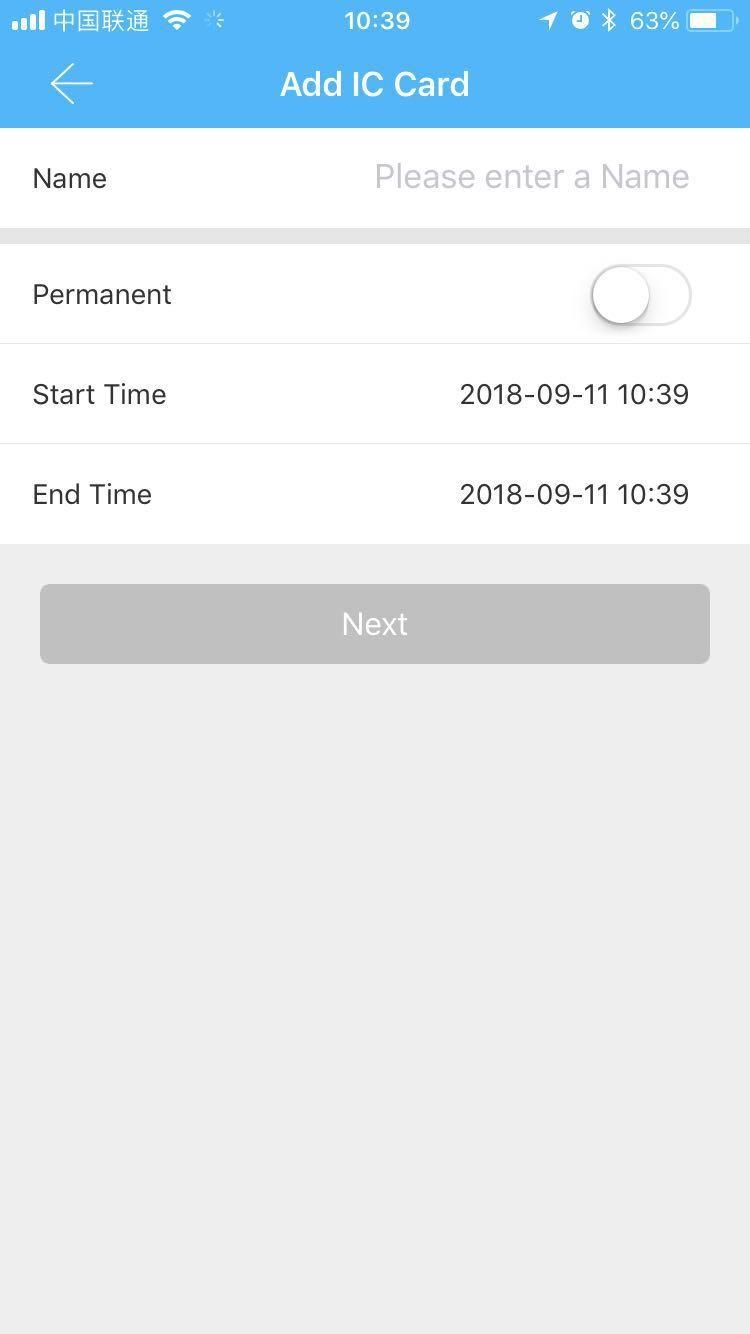
IC card management
To use a proximity card, first add it in the app while near the lock (Bluetooth).
- Set a validity period (permanent or timed)
- Browse and manage all cards in the “IC Cards” module
- With a WiFi gateway you can add cards remotely
- Expired cards are marked as “Expired”
Fingerprint management
Fingerprint management works similarly to card management. Once added, you can use your finger to open the lock.
- Stand near the lock (Bluetooth)
- Select “Fingerprints” in the app
- Tap “Add fingerprint”
- Place your finger on the lock's reader several times
- Set a name and validity period
8. Bluetooth unlocking
You can open the lock via Bluetooth in two ways:
Method A: Button in the app
Open the app, select the lock and tap the large “Unlock” button on the screen.
Method B: Touch the lock keypad
With the app open, simply touch the lock keypad — the lock opens automatically.
“Touch to Unlock” feature
You can enable or disable touch-to-unlock in the lock settings. When enabled the lock opens automatically after tapping the keypad.
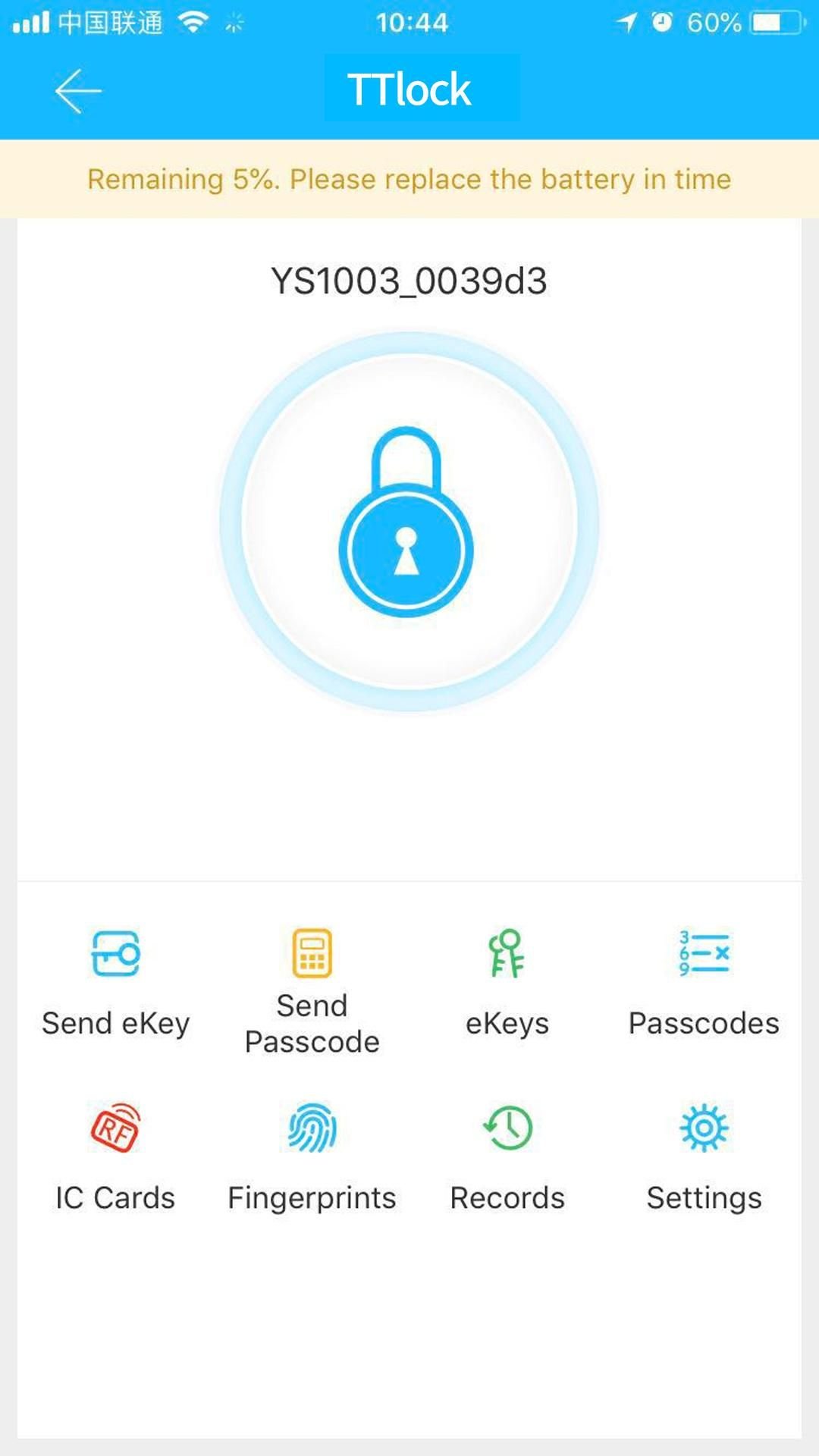
Bluetooth range: Make sure you are within Bluetooth range (usually up to 10 metres without obstacles).
9. WiFi Gateway
The WiFi gateway is an optional device that connects the lock to the internet. It lets you manage the lock remotely from anywhere in the world.
WiFi gateway advantages:
- Remotely unlock the lock from anywhere
- Read the event history without being near the lock
- Remotely extend or revoke guest access
- Remotely delete codes (e.g. after cancelled reservations)
- Change permissions for cards, fobs and fingerprints
- Automatic lock time calibration
- Remotely add IC cards
Adding a gateway:
- Plug the gateway in near the WiFi router
- In the app go to Settings → Gateway
- Tap “Add gateway”
- Choose the WiFi network and enter the password
- Wait for the connection (LED changes colour)
10. Frequently asked questions
Need more information?
If you need more details about TTHotel or TTLock features, please get in touch. See also our range of compatible electronic locks, fingerprint handles, PIN-code handles and hotel locks supported by TTLock.
Contact us